Console Commands and Quality of Life
Last updated: May 18, 2026
Console commands, FPS tweaks, useful keybinds. Open the console with F1 (configurable in settings).
Important 2026 update: Some commands require server admin. Most below work on any server.
Performance commands (FPS gain)
| Command | Effect |
|---|---|
graphics.shaderlod 600 |
Reduce shader detail |
graphics.contactshadows false |
Disable contact shadows |
graphics.dof false |
Disable depth of field |
graphics.vm_fov_scale false |
Lock viewmodel FOV |
gfx.ssaa 0 |
Disable super-sampling |
effects.aa_quality 0 |
Anti-aliasing off |
fps.limit 60 |
Limit FPS (or 144 / 240) |
gc.collect |
Force garbage collection, reclaim RAM |
client.camerafov 90 |
Field of view (60-90 range) |
Run these once per session. They persist until you reset.
Aim and crosshair
| Command | Effect |
|---|---|
client.sensitivity 0.3 |
Mouse sensitivity (0.05-1.0 typical) |
input.sensitivity 0.3 |
Alternative for older builds |
aimcone.fixed 0 |
Toggle deterministic crosshair |
weapon.shotgunviolence true |
Cosmetic shotgun screen-shake |
Voice and chat
| Command | Effect |
|---|---|
voice_loopback 1 |
Hear yourself in voice (mic test) |
voicemenu 1 |
Quick voice wheel |
chat.serverlog false |
Hide server log spam |
Useful keybinds
Bind via console: bind <key> "<command>"
| Bind | Use |
|---|---|
bind v +voice |
Push-to-talk voice |
bind q forward; sprint |
Auto-run forward + sprint |
bind shift +duck |
Crouch on shift hold |
bind c +reload |
Reload on C key |
bind mouse4 +attack |
Mouse-4 fires (alt-fire button) |
bind m "+map" |
Quick open map (the default map key is G) |
Common F1 chats
| Command | Use |
|---|---|
kill |
Suicide (helpful if stuck) |
respawn |
Respawn at sleeping bag 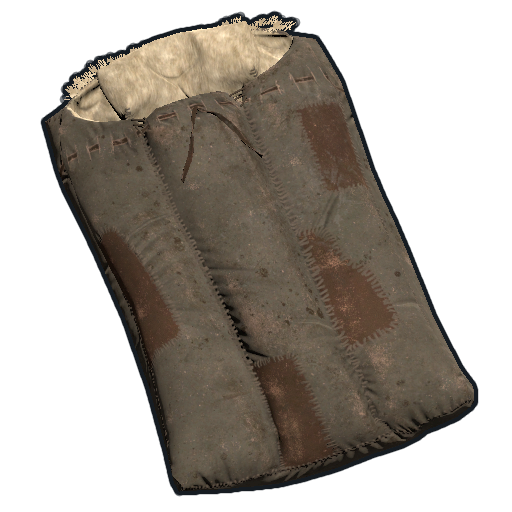 |
noclip |
Admin-only (private servers) |
inventory.giveto "PlayerName" "ItemName" 100 |
Admin spawn 100 of an item |
disconnect |
Leave server |
Game settings (in-menu)
- Graphics quality: "Custom" → adjust shadows, textures, distance to taste
- Field of view: 90 (max) for competitive play
- Mouse sensitivity: 1.5-2.5 per inch is typical for Rust
- Voice volume: Keep your mic at moderate; you can blow eardrums in close quarters
- Mouse acceleration: OFF (Windows mouse settings + Rust)
Rust+ companion app
The official mobile companion app — pair via in-game inventory → Rust+ menu → QR code.
What Rust+ does:
- Live notifications when smart alarms
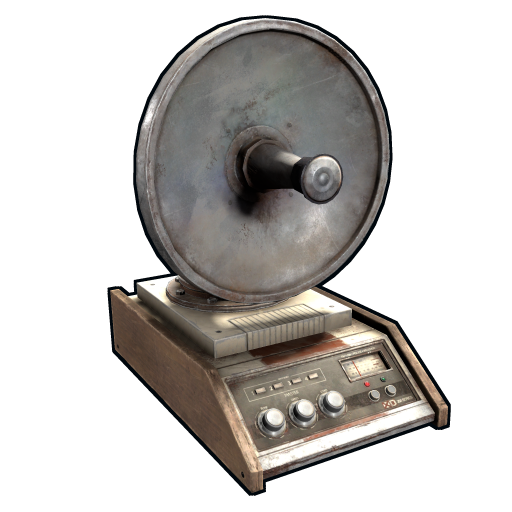 trigger in your base
 - Map view with your TC
 location, sleeping bags , smart switches
 - Smart switch
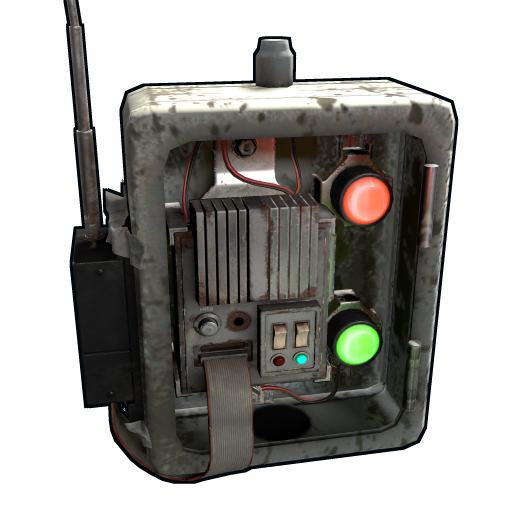 toggle from phone (e.g., remote-arm your turret
 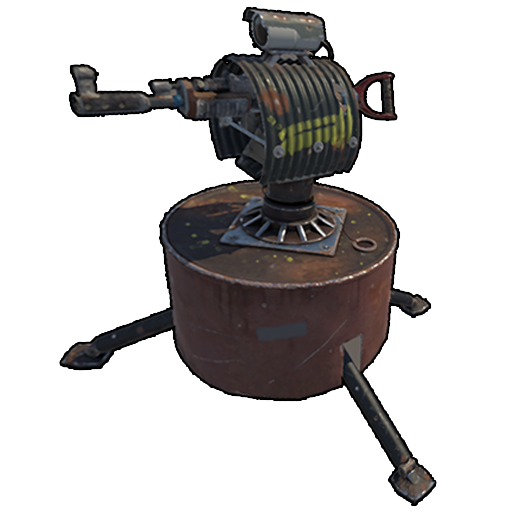 )
) - Chat with teammates
- Cargo / Heli / Bradley spawn alerts
Pro tip: pair Rust+ to a smart alarm wired to your front door. You'll get pinged the moment someone breaches.
Common QoL settings
- Disable VSync in Nvidia/AMD control panel for lower input lag
- Set Rust to "High Priority" via Task Manager during play sessions
- Use a 144Hz+ monitor if you can — visible aim improvement
- Keyboard rebinds: map melee weapon to mouse-3, reload to a side button
- Audio settings: lower master volume, raise effects volume — footsteps clarity
Pro tips
- F1 →
gc.collectduring long sessions reclaims memory - Bind sprint forward to a button for hands-free travel during boring runs
- Use the in-game F7 to report cheaters — helps EAC ban actual offenders
- Don't bind console commands to commonly-used keys — accidentally typing them in chat is embarrassing
Diagnostic commands — reading your own performance
Before you tweak graphics blindly, find out what is actually slowing you down. These read-only commands work on any server and cost nothing to run.
| Command | What it tells you |
|---|---|
perf 1 | On-screen FPS and frame-time counter (lower-detail overlay) |
perf 2 | FPS plus network latency |
perf 6 | The fullest overlay — adds RAM, ping, invoke and task stats (levels run 0–6) |
fps | Prints current frame rate to the console once |
net.graph 1 | Shows ping, packet loss and bandwidth — diagnose desync and rubber-banding |
combatlog | Prints your last ~30 seconds of combat events: who hit you, for how much, in which bodypart, and with what |
combatlog 50 | Same, showing the last 50 entries — essential for "was that a cheater?" checks |
server.netread / server.netwrite | Network throughput diagnostics |
How to read combatlog: the columns are time, attacker, target, weapon, ammo, area (bodypart), distance, and the HP before/after. If the "hp_old" to "hp_new" drop does not match the weapon's known damage, or the distance is implausible for the weapon, that is your evidence for an F7 report. The combat log is the single most useful tool a normal player has for distinguishing a genuinely good opponent from a cheater — learn to read it.
What each graphics command actually does
The FPS table earlier lists commands; this section explains the trade-offs so you tune intelligently rather than turning everything off.
graphics.shaderlod 600— lower numbers strip shader detail at distance. 600 is a strong-but-not-ugly setting; 100 is the extreme low end and makes far terrain flat.graphics.contactshadows false— contact shadows are the small soft shadows under objects. Disabling them is a free FPS gain with almost no competitive downside.graphics.dof false— depth of field blurs the screen when aiming. Many competitive players keep this off permanently because the blur hides peeking enemies.grass.displacement false— disables grass bending. Minor FPS gain; some players also disable grass entirely with the in-menu slider for cleaner sightlines.gfx.ssaa 0— super-sampling is the single most expensive setting. Turn it off first.water.quality 0— flattens water reflections. Big gain near oceans, rivers and oil rigs.terrain.idleinterval 4— reduces how often terrain detail recalculates while you stand still.mesh.shadowdistance 0— disables mesh shadows; aggressive but a large gain on weak GPUs.
The order of operations: turn off SSAA, then water quality, then contact shadows and DOF, then shader LOD. Measure with perf 2 after each change. Stop as soon as you hit a stable rate above your monitor's refresh — over-stripping the game just makes it ugly without further benefit.
Environment, audio and camera commands
| Command | Effect |
|---|---|
audio.voices 1 | Toggle hearing other players' voice (set 0 to mute global voice spam) |
audio.master 0.6 | Master volume 0-1 — lower it so footsteps stay clear |
audio.game 1 | Game effects volume — keep this high for footstep and reload audio cues |
global.colliderinfo | Diagnostic — prints collider counts |
client.fov 90 | Field of view, alternate to camerafov; 90 is the competitive max |
client.lerp | Interpolation buffer — leave default unless you understand desync trade-offs |
ambience.enabled false | Disables ambient soundscape — some players cut it to isolate player-made noise |
console.clear | Clears the console output buffer |
chat.enabled true | Toggle the chat window entirely |
Most of these can be confirmed live with find — typing find audio in the F1 console lists every audio convar and its current value. find is the master key to the console: any time you forget a command's exact name, type find plus a keyword.
Config files — making your tweaks survive a restart
Client convars set in F1 last only for the session. To make them permanent, edit the client config file directly. On Windows it lives at:
Steam\steamapps\common\Rust\cfg\client.cfg
Each line is one convar in name "value" form, exactly as you would type it in console. A separate file, keys.cfg, stores your binds. Editing these files while Rust is closed makes your performance and bind setup load automatically every launch — no more re-running gfx.ssaa 0 every session. Keep a backup copy of both files; a verified-files repair through Steam can overwrite them.
The companion file client.startup can hold commands you want run at launch. A common pro setup is a tuned client.cfg for graphics plus a keys.cfg with combat binds, both backed up to a cloud folder so a reinstall takes thirty seconds instead of an hour.
Advanced binds — chained and toggle binds
Binds can hold multiple semicolon-separated commands and can be toggled. This unlocks genuinely useful setups beyond single-key actions.
| Bind | Use |
|---|---|
bind t "chat.say /trade" | One-key trade request on modded servers |
bind f1 consoletoggle | Reliable console toggle if F1 stops responding |
bind mouse3 "+attack;+attack2" | Fire both melee swing types where applicable |
bind k kill | Instant suicide — useful to escape a soft-side trap or reset a bad spawn |
bind l "combatlog" | One-key combat log dump after a fight |
bind p "gc.collect" | One-key memory cleanup during long sessions |
bind capslock "~graphics.fog 0;graphics.fog 1" | Toggle bind — the tilde prefix makes the key alternate between the two states |
The tilde toggle syntax (bind key "~commandA;commandB") is the advanced feature: each press alternates between the first and second command. It is most commonly used for hold-vs-toggle crouch or a quick day/night fog flip for screenshots. Avoid binding anything destructive (kill, respawn) to a key you use in normal movement — an accidental press at the wrong moment ends your run.
Why a command does nothing — client vs. server convars
Rust convars fall into three buckets, and knowing which is which saves frustration:
- Client convars (
graphics.*,audio.*,client.*, binds) — always work, affect only your machine. - Server convars (
server.*,decay.*,env.*) — require admin/owner authorization. Typing them as a normal player silently fails or returns a permission error. - Cheat-protected convars — things like fly speed or spawn commands are gated behind server convar
sv_cheats-style protection and EAC. They cannot be enabled client-side on any official or community server; anyone claiming otherwise is selling a banned third-party tool.
If a command "does nothing," it is almost always a server or protected convar. Use find to confirm the command exists and is spelled correctly, then check whether it begins with server. — if it does, you need admin rights, covered on the Admin Commands page.